
Skills Library
@craftskillz · version 0.4.0
Keep the agent skills you have judged, place them on a radar, and publish it as a blog post.
Admitted to the Marketplace at its first publication. Updates are not reviewed. The Creator answers for this code, and you install it at your own risk. Source repository
- Licence
- MIT
- Source
- https://github.com/craftskillz/tessello-skills-library
- Permissions
network:https://raw.githubusercontent.com,https://api.github.com
- Widget
- Size M
- Tags
Skills Library
Keep the agent skills you have judged, in one place.
You keep sets in the Library. A set is a group of skills, usually a GitHub folder of them. The set has a ring, which is your verdict on it. Each of its skills has a score, notes and a topic. The radar draws the sets, with one point for each topic a set covers.
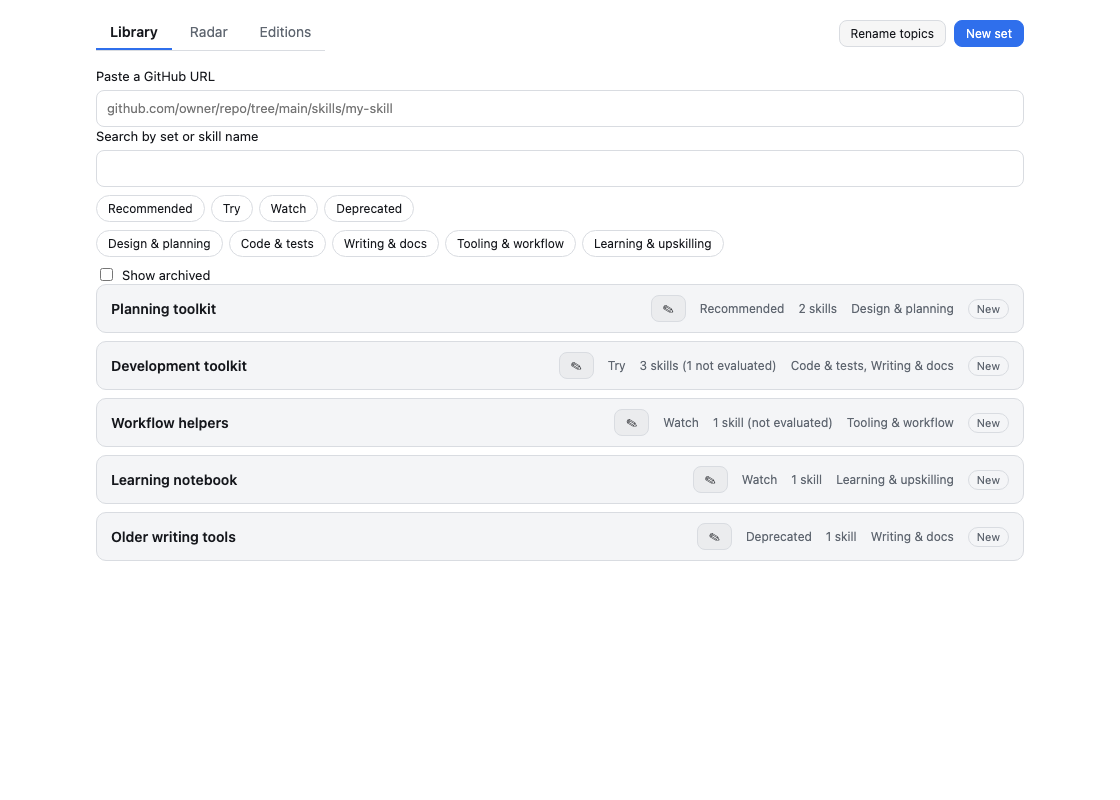
Every change is saved the moment you make it. There is no Save button.
To open this guide again, find Skills Library in Tessello's Launcher, click About, then User guide.
Importing a set from GitHub
Paste the GitHub URL of the folder that holds the skills in Paste a GitHub URL, at the top of the Library, or type it and press Enter. Every folder directly under that URL that has a SKILL.md is a skill. The Module lists the folder through api.github.com and reads each SKILL.md from raw.githubusercontent.com, the only two servers it contacts. A skill takes the name and the description its frontmatter gives. The URL of a single skill (its SKILL.md, or its folder) works too: it gives a set of one skill.
An Import a set dialog then shows what was found, before anything is kept:
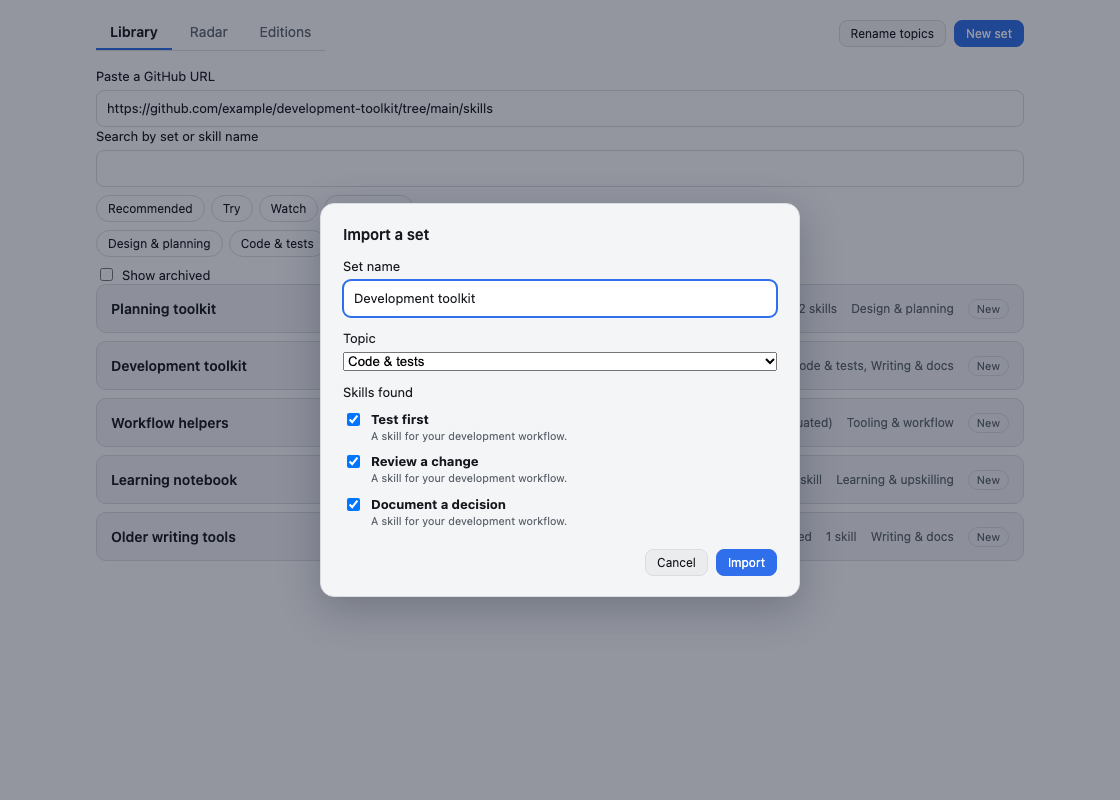
- Set name: filled in with the name of the repository (the name of the skill when there is only one), and required. Change it as you like.
- Topic: the topic given to all the skills you import. Pick the one that fits; you can change a skill's topic afterwards.
- Skills found: each skill with its description and a checkbox, all checked. Uncheck the ones you do not want. At least one must stay checked.
Click Import to create the set. It starts in the Watch ring, and its skills are not evaluated yet.
When the URL cannot be imported, a message says why, and the library is left as it was:
- This is not the GitHub URL of a skill. The URL is not a GitHub URL the Module understands.
- Nothing was found at this URL (is the repository public?). GitHub has nothing there.
- No skill folder found directly under this URL. Point to the folder that contains them, e.g. …/tree/main/skills. The folder holds no skill.
- GitHub could not be read (check your connection). The connection failed.
- GitHub rate limit reached, try again later.
- Already in your Library. A set from the same URL is there already: nothing is added, and its row is highlighted.
After a failure, Continue manually opens the form with the URL filled in, so you can finish by hand.
Adding a set or a skill by hand
Click New set, type the name, and optionally a URL and a description, then click Add. The set appears at the top of the Library, in the Watch ring, and its panel opens. It has no skill yet, so it is No skill — not on the radar.
To add a skill, open the set and click Add skill in its Skills section: type its name and optionally its URL and description, then click Add. Its section unfolds. A new skill takes the topic most of the set's skills have (the first topic for an empty set), and a template for its notes.
Judging a set and its skills
Click a set in the Library (or its pencil button, which works with the keyboard) to open its panel. On a narrow screen it fills the page. The set holds:
- Name, URL and Description.
- Ring, for the whole set: Recommended, Try, Watch or Deprecated.
- Set notes: free text in Markdown, up to 8,000 characters.
- Skills: one unfolding section per skill, with the skill's score and, when it has no score, Not evaluated.
Open a skill's section to give it:
- Name, URL and Description.
- Topic, chosen among the five topics (see below).
- Score: one to five stars. Click a star, or use the arrow keys once a star is focused. Clear puts the skill back to Not evaluated.
- Notes: free text in Markdown, up to 8,000 characters.
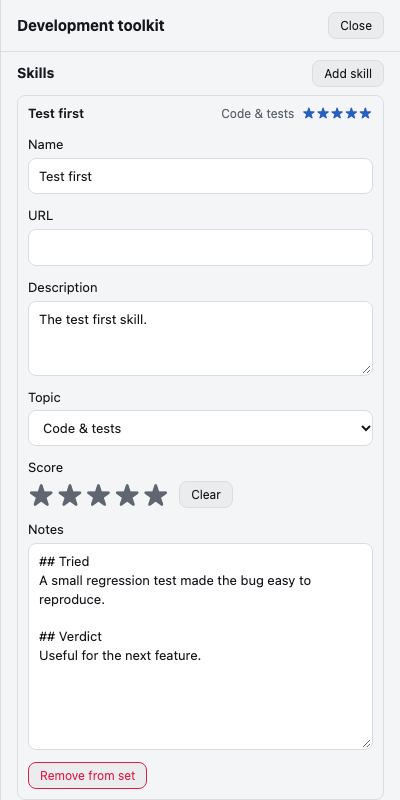
The ring and the score answer different questions. The ring is your recommendation for the whole set; a score is your assessment of one skill. A set in Try can contain a five-star skill and another you have not evaluated. Changing a score never changes the set's ring, and moving a set never changes its skills' scores. Not evaluated means you have not given that skill a score; it is not a zero-star rating.
Remove from set takes a skill out of its set, after you confirm; its notes go with it.
Each change is saved as you make it. Close the panel with Close or Escape. A change that cannot be saved says why under its field, and what you typed stays in place so you can fix it:
- A name is required. The name cannot be blank.
- Notes are limited to 8,000 characters. Trim the notes.
- Another set already has this URL. Two sets cannot come from the same place.
- Another skill of this set already has this URL.
The five topics
Every skill has one of five topics. By default they are Design & planning, Code & tests, Writing & docs, Tooling & workflow and Learning & upskilling. The topic is chosen per skill, not per set, so one set can have skills in several topics. On the Library, a set's row lists the topics its skills are in.
To change the topic of a skill, open its set, unfold the skill's section and pick another Topic. When you import a set, the Topic of the dialog applies to all its skills at once.
To rename the topics, click Rename topics in the Library and edit the five names (1 to 40 characters, required). A name is saved as soon as it is valid; a blank one shows A topic name is required. and is not saved. Renaming a topic moves no skill: each stays in its topic, under the new name.
Refreshing a set from GitHub
A set imported from GitHub can be brought up to date. Open it and click Refresh from GitHub. The Module reads the folder again and tells you what it found:
- N skills added: new skills in the folder join the set, not evaluated. Your scores and notes on the other skills are left alone.
- N removed upstream: skills that are no longer in the folder are kept, with their score and notes, and tagged Removed upstream. Use Remove from set if you do not want them any more.
- Already up to date when nothing changed.
- No skill found at this URL any more. Nothing was changed. The folder is empty, or gone.
Filtering and searching
Above the list, Search by set or skill name ignores case and accents, and finds a set by the name of one of its skills too. The buttons for each ring (Filter by ring) and each topic (Filter by topic) filter the list; select several to see the sets that match any of them. Clear filters appears when a filter is on, and No set matches these filters. when nothing is left. The page remembers your filters.
Archiving and deleting a set
At the bottom of a set's panel, Archive takes the set off the Library without losing what you wrote about it. Archived sets are hidden unless you turn on Show archived above the list, where they appear greyed and tagged Archived; the page remembers the switch. Unarchive puts a set back. An archived set still counts for duplicates: adding its URL again shows it, with the switch turned on.
Delete removes a set, its skills and their notes for good, after you confirm. It only appears for a set that is in no edition: a set you published offers Archive only. An archived set leaves the radar.
The radar
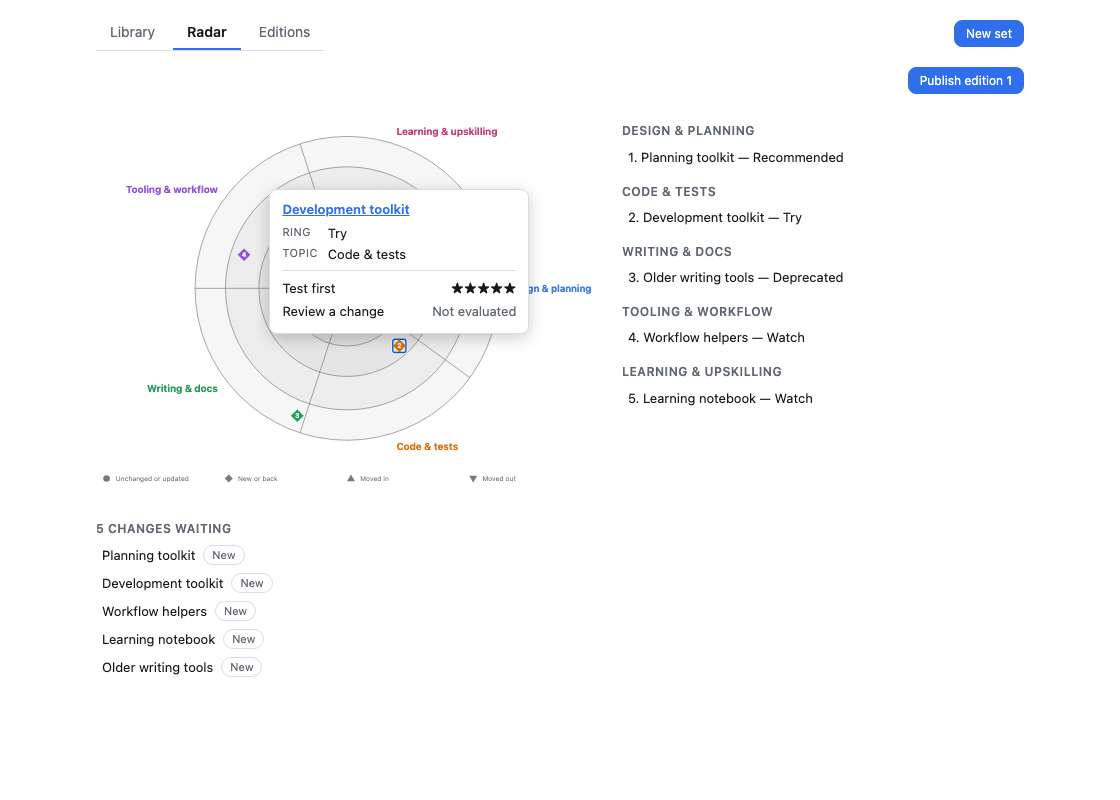
The Radar tab draws the radar of your next edition: every set that is not archived and holds at least one skill, as numbered points. The ring of the set gives the distance from the centre (Recommended, Try, Watch, Deprecated, from the centre outwards), and the topic gives the sector and the colour.
A set has one point for each topic its skills are in. All its points carry the same number, the same ring and the same marker, and sit in the sector of their own topic. A set with skills in two topics has two points; a set with a single topic has one. A set without a skill is not on the radar. A point stays where it is until you change the ring of its set or the topic of a skill.
The marker tells what changed since the last edition: a circle for a set unchanged or only updated, a diamond for a new set or one that is back, a triangle up (Moved in) for a set moved towards the centre and a triangle down (Moved out) for one moved away from it. The legend under the radar (beside it on a wide screen) lists each set once, with the same number and its ring, grouped under the first topic its skills cover.
Hover a point with the mouse, tap it on a touch screen, or reach it with Tab (the points follow their numbers, then their topics) to open a panel. It shows the set, its ring, the topic of this point and only the skills of the set in this topic, with their stars or Not evaluated. A set with two points opens a different panel on each, with different skills. Escape closes the panel.
Click a point, or a line of the legend, or the name of the set in the panel, to open the set in the Library.
Under the legend, N changes waiting lists what the next edition would announce: new sets, sets back, sets moved (Moved: Try → Recommended) and sets retired (Retired (was Watch)). Click one to open it. If the retired set is archived, the Library turns on Show archived to show it. Until you have published an edition, every set is new.
For a set in the last edition that keeps its ring and at least one skill, changes to its notes or skills (adding or removing one, changing a score or notes) are marked Updated. They are included in the next edition, but do not add to the changes-waiting counter or require a movement explanation. Removing its last skill takes the set off the radar and counts as Retired. A set that returns after being absent from the last edition is Back; both changes count as waiting.
Publishing an edition
An edition freezes your radar under a number and a date, with an introduction. In the Radar tab, click Publish edition 1 (the number is always the next one). Write the Introduction in Markdown (it is required), click Next, then Publish. A published edition cannot be changed afterwards. If it cannot be saved, the dialog says why and nothing is published.
Once an edition is published, the changes waiting are counted from it. When the ring of a set differs from the one in the last edition, its panel asks Why did it move? (up to 280 characters). Moving the set back to its published ring removes the question and what you wrote.
While a moved set has no explanation, the dialog lists those sets instead of publishing: click one to open its panel and write it. Publishing erases the explanations, which the edition keeps.
The editions and the blog post
The Editions tab lists the editions you published, the newest first: its number, its date and how many sets it holds in each ring. An edition is never changed.
Download .zip gives the post of an edition, ready for the blog: unzip it at the root of the blog. It holds the post (_posts/skills-radar-edition-<n>.md) and its cover, the radar as an image (public/assets/blog/skills-radar-edition-<n>/cover.png). The post has your introduction, the radar with its legend, a card for each set that is new, back or moved (with its skills, their topics, stars and notes), the rest of the radar and the sets retired. The generated headings and labels, including those in the radar and cover, are always in English. Your introduction, names, descriptions, topics and notes appear as you wrote them. You can download any edition again, at any time.
The widget
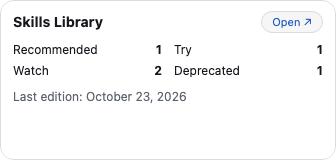
The Home shows how many sets each ring holds (archived sets, and sets without a skill, are left out), the date of the last edition (or "No edition yet") and, when there are any, how many changes are waiting to be published. Open brings you to the page. The widget reads your sets again each time the Home comes back.
Network access and your data
The two network Permissions let the Module read public GitHub repositories: api.github.com lists the folders to discover skills, and raw.githubusercontent.com supplies their SKILL.md files. Import and Refresh from GitHub need a connection. Private repositories and signing in to GitHub are not supported.
The Module keeps the names, URLs and descriptions it reads, together with your rings, topics, scores, notes and editions, in your Modules folder. It does not keep or run the content of the skills. To use a skill with your agent, follow its URL and that agent's installation instructions. Your saved Library, radar and editions remain available offline; reading a linked GitHub page needs a connection.
Uninstalling Skills Library deletes its saved sets, skills, scores, notes and editions. To keep them, use Tessello's Export your space before uninstalling. An edition's blog .zip is for publishing, rather than restoring your Library.
If the Module cannot read your saved data, it blocks adding sets and offers Try again. If a change cannot be saved, an error explains why: the change stays on screen but will be lost when you leave. Keep a copy of what you typed before leaving or reloading, and resolve the error before continuing.
The tabs
- Library lists your sets, the newest first, with their ring, their number of skills and their topics.
- Radar draws your sets as a radar, with the changes waiting to be published.
- Editions lists the editions you published, the newest first, each with its Download .zip.
The page remembers the tab you left it on.
About Skills Library
Skills Library is a Module of Tessello, published by @craftskillz under the MIT license. Its sources, its versions and its issues are at https://github.com/craftskillz/tessello-skills-library.